最近辦活動需要製作名牌跟桌牌
由於桌牌跟名牌是利用power point製作
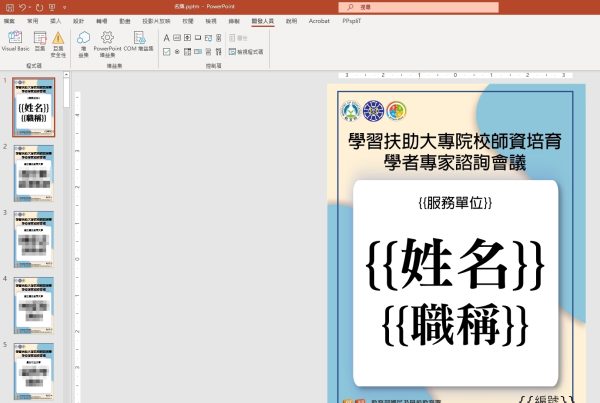
所以最直接的方法就是在power point 透過VBA讀取要套印的資料
再利用搜尋跟替換的方式達成套印的效果,將簡報輸出成圖檔
直接讓Gemini生成程式碼,如下
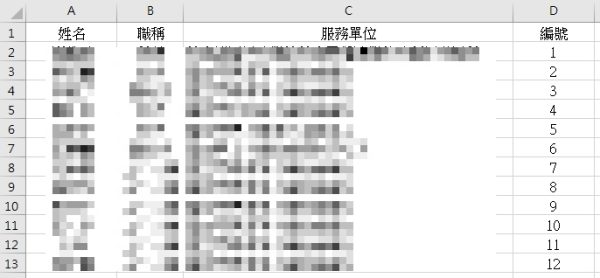
excel套印資料
power point VBA主程式
程式主要流程為:
1.複製第一頁模板
2.再遍歷影片上的所有圖形/文字框
3.將符合的文字替換成套印的資料
1
2
3
4
5
6
7
8
9
10
11
12
13
14
15
16
17
18
19
20
21
22
23
24
25
26
27
28
29
30
31
32
33
34
35
36
37
38
39
40
41
42
43
44
45
46
47
48
49
50
51
52
53
54
55
56
57
58
59
60
61
62
63
64
65
66
67
68
69
70
71
72
73
74
75
76
77
78
79
80
81
82
83
84
2
3
4
5
6
7
8
9
10
11
12
13
14
15
16
17
18
19
20
21
22
23
24
25
26
27
28
29
30
31
32
33
34
35
36
37
38
39
40
41
42
43
44
45
46
47
48
49
50
51
52
53
54
55
56
57
58
59
60
61
62
63
64
65
66
67
68
69
70
71
72
73
74
75
76
77
78
79
80
81
82
83
84
Sub GenerateSlidesFromExcel()
Dim xlApp As Object
Dim xlBook As Object
Dim xlSheet As Object
Dim pptSlide As Slide
Dim pptShape As Shape
Dim i As Integer
Dim lastRow As Integer
Dim templateSlide As Slide
Dim filePath As String
' 1. 選擇 Excel 檔案
With Application.FileDialog(msoFileDialogFilePicker)
.Title = "請選擇 Excel 資料檔"
.Filters.Add "Excel Files", "*.xls; *.xlsx; *.xlsm", 1
If .Show = -1 Then
filePath = .SelectedItems(1)
Else
MsgBox "未選擇檔案,程式結束。"
Exit Sub
End If
End With
' 2. 開啟 Excel (使用 Late Binding,不需要手動設定參照)
Set xlApp = CreateObject("Excel.Application")
Set xlBook = xlApp.Workbooks.Open(filePath)
Set xlSheet = xlBook.Sheets(1) ' 假設資料在第一頁
' 取得最後一列的列數
lastRow = xlSheet.Cells(xlSheet.Rows.Count, "A").End(-4162).Row ' -4162 等於 xlUp
' 設定第一張投影片為模版
Set templateSlide = ActivePresentation.Slides(1)
' 3. 迴圈讀取資料 (從第2列開始,因為第1列是標題)
For i = 2 To lastRow
' 複製模版投影片到最後面
Set pptSlide = templateSlide.Duplicate.Item(1)
pptSlide.MoveTo (ActivePresentation.Slides.Count)
' 4. 在新投影片中尋找並替換文字
' 讀取 Excel 資料
Dim nameData As String
Dim idData As String
Dim titleData As String
nameData = xlSheet.Cells(i, 2).Value ' B欄: 姓名
titleData = xlSheet.Cells(i, 3).Value ' C欄: 職稱
idData = xlSheet.Cells(i, 4).Value ' D欄: 學校單位
noData = xlSheet.Cells(i, 6).Value ' F欄: 編號
' 遍歷該投影片上的所有圖形/文字框
For Each pptShape In pptSlide.Shapes
If pptShape.HasTextFrame Then
If pptShape.TextFrame.HasText Then
' 替換 {{姓名}}
pptShape.TextFrame.TextRange.Replace FindWhat:="{{姓名}}", _
ReplaceWhat:=nameData, WholeWords:=False
' 替換 {{職稱}}
pptShape.TextFrame.TextRange.Replace FindWhat:="{{職稱}}", _
ReplaceWhat:=titleData, WholeWords:=False
' 替換 {{編號}}
pptShape.TextFrame.TextRange.Replace FindWhat:="{{服務單位}}", _
ReplaceWhat:=idData, WholeWords:=False
' 替換 {{編號}}
pptShape.TextFrame.TextRange.Replace FindWhat:="{{編號}}", _
ReplaceWhat:=noData, WholeWords:=False
End If
End If
Next pptShape
Next i
' 關閉 Excel
xlBook.Close SaveChanges:=False
xlApp.Quit
Set xlSheet = Nothing
Set xlBook = Nothing
Set xlApp = Nothing
' Call ExportSlidesToImages
MsgBox "完成!共新增 " & (lastRow - 1) & " 張投影片。"
End Sub
Dim xlApp As Object
Dim xlBook As Object
Dim xlSheet As Object
Dim pptSlide As Slide
Dim pptShape As Shape
Dim i As Integer
Dim lastRow As Integer
Dim templateSlide As Slide
Dim filePath As String
' 1. 選擇 Excel 檔案
With Application.FileDialog(msoFileDialogFilePicker)
.Title = "請選擇 Excel 資料檔"
.Filters.Add "Excel Files", "*.xls; *.xlsx; *.xlsm", 1
If .Show = -1 Then
filePath = .SelectedItems(1)
Else
MsgBox "未選擇檔案,程式結束。"
Exit Sub
End If
End With
' 2. 開啟 Excel (使用 Late Binding,不需要手動設定參照)
Set xlApp = CreateObject("Excel.Application")
Set xlBook = xlApp.Workbooks.Open(filePath)
Set xlSheet = xlBook.Sheets(1) ' 假設資料在第一頁
' 取得最後一列的列數
lastRow = xlSheet.Cells(xlSheet.Rows.Count, "A").End(-4162).Row ' -4162 等於 xlUp
' 設定第一張投影片為模版
Set templateSlide = ActivePresentation.Slides(1)
' 3. 迴圈讀取資料 (從第2列開始,因為第1列是標題)
For i = 2 To lastRow
' 複製模版投影片到最後面
Set pptSlide = templateSlide.Duplicate.Item(1)
pptSlide.MoveTo (ActivePresentation.Slides.Count)
' 4. 在新投影片中尋找並替換文字
' 讀取 Excel 資料
Dim nameData As String
Dim idData As String
Dim titleData As String
nameData = xlSheet.Cells(i, 2).Value ' B欄: 姓名
titleData = xlSheet.Cells(i, 3).Value ' C欄: 職稱
idData = xlSheet.Cells(i, 4).Value ' D欄: 學校單位
noData = xlSheet.Cells(i, 6).Value ' F欄: 編號
' 遍歷該投影片上的所有圖形/文字框
For Each pptShape In pptSlide.Shapes
If pptShape.HasTextFrame Then
If pptShape.TextFrame.HasText Then
' 替換 {{姓名}}
pptShape.TextFrame.TextRange.Replace FindWhat:="{{姓名}}", _
ReplaceWhat:=nameData, WholeWords:=False
' 替換 {{職稱}}
pptShape.TextFrame.TextRange.Replace FindWhat:="{{職稱}}", _
ReplaceWhat:=titleData, WholeWords:=False
' 替換 {{編號}}
pptShape.TextFrame.TextRange.Replace FindWhat:="{{服務單位}}", _
ReplaceWhat:=idData, WholeWords:=False
' 替換 {{編號}}
pptShape.TextFrame.TextRange.Replace FindWhat:="{{編號}}", _
ReplaceWhat:=noData, WholeWords:=False
End If
End If
Next pptShape
Next i
' 關閉 Excel
xlBook.Close SaveChanges:=False
xlApp.Quit
Set xlSheet = Nothing
Set xlBook = Nothing
Set xlApp = Nothing
' Call ExportSlidesToImages
MsgBox "完成!共新增 " & (lastRow - 1) & " 張投影片。"
End Sub
power point VBA輔助函式
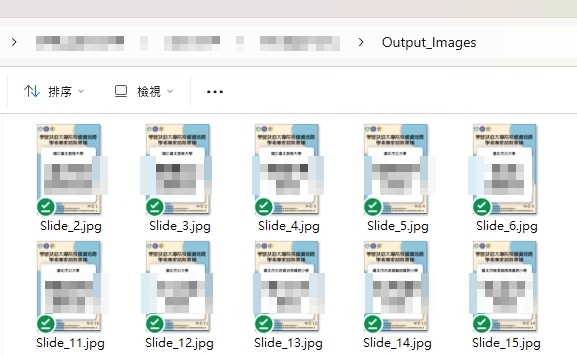
將簡報"匯出"成圖檔
使用"匯出",可以個別命名每一張投影片名稱
可以在主程式套印完資料後呼叫,或者另外執行
1
2
3
4
5
6
7
8
9
10
11
12
13
14
15
16
17
2
3
4
5
6
7
8
9
10
11
12
13
14
15
16
17
Sub ExportSlidesToImages()
Dim sld As Slide
Dim exportPath As String
exportPath = ActivePresentation.Path & "\Output_Images\"
' 建立資料夾
If Dir(exportPath, vbDirectory) = "" Then MkDir exportPath
For Each sld In ActivePresentation.Slides
' 跳過第一張模版(如果不需要輸出的話)
If sld.SlideIndex > 1 Then
' 匯出為 JPG,解析度可調整 (ScaleWidth/Height)
sld.Export exportPath & "Slide_" & sld.SlideIndex & ".jpg", "JPG"
End If
Next sld
MsgBox "圖片匯出完成!"
End Sub
Dim sld As Slide
Dim exportPath As String
exportPath = ActivePresentation.Path & "\Output_Images\"
' 建立資料夾
If Dir(exportPath, vbDirectory) = "" Then MkDir exportPath
For Each sld In ActivePresentation.Slides
' 跳過第一張模版(如果不需要輸出的話)
If sld.SlideIndex > 1 Then
' 匯出為 JPG,解析度可調整 (ScaleWidth/Height)
sld.Export exportPath & "Slide_" & sld.SlideIndex & ".jpg", "JPG"
End If
Next sld
MsgBox "圖片匯出完成!"
End Sub
執行主程式
執行匯出
如果名牌要輸出成制式規格,例如:A4或A5,就可以直接用印表機輸出圖檔
但如果要輸出成指定規格,例如:10公分(寬)*14公分(高)
我的做法是用word VBA執行替換圖檔的程式 ,將圖檔插入A4大小的版面
A4大小可以放入2*2的表格,1頁4張圖,這樣比較好裁切
下一篇文章再來說明
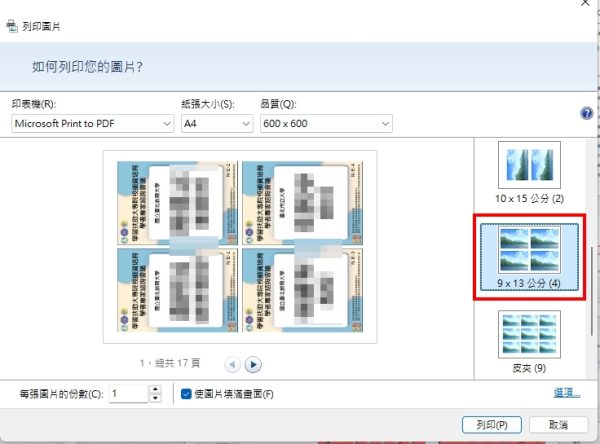
備註:如果不考慮名牌的尺寸,或者沒有要裝入名牌套
更簡單的方式,可以利用作業系統內建的列印功能
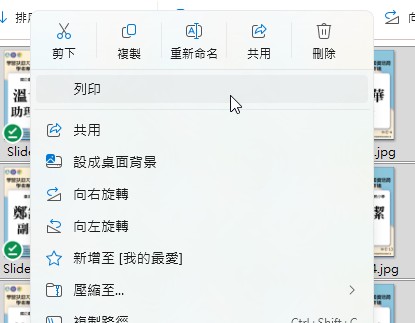
選擇1頁4張,甚至1頁9張


0 comments:
張貼留言