前一篇文章完成了批次產生桌牌或名牌的圖檔
再來就是輸出了
由於辦公室的影印機可以輸出A4、A3跟B4
所以我用A4格式來設定
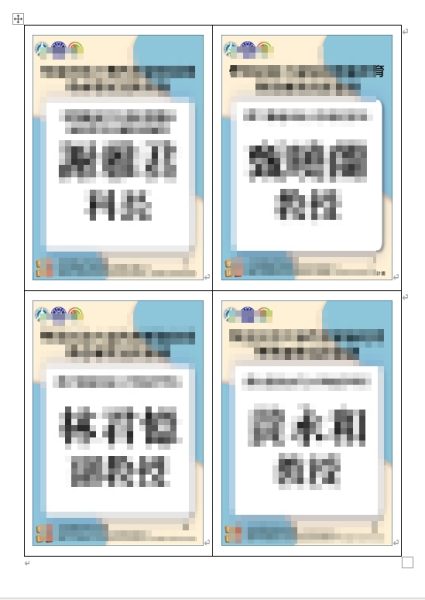
名牌,一張A4,2欄2列(2*2)的表格,4張圖
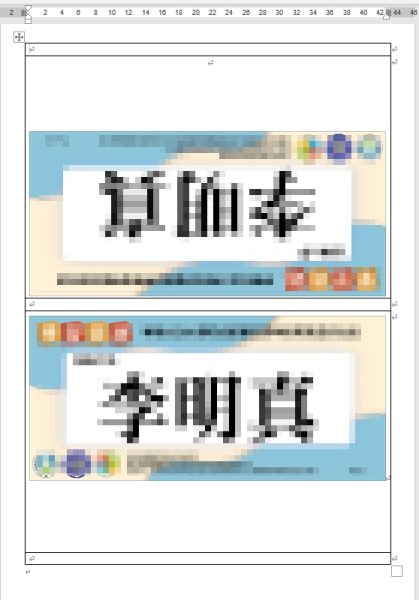
桌牌,一張A4,1欄5列(1*5)的表格,1張圖,用2次,其中一張翻轉180度
我先建立範本,再用VBA批次替換圖片
程式碼說明如下
1.名牌
比較單純的1頁插入4張圖片,套用範本圖檔的寬高設定
1
2
3
4
5
6
7
8
9
10
11
12
13
14
15
16
17
18
19
20
21
22
23
24
25
26
27
28
29
30
31
32
33
34
35
36
37
38
39
40
41
42
43
44
45
46
47
48
49
50
51
52
53
54
55
56
57
58
59
60
61
62
63
64
65
66
67
68
69
70
71
72
73
74
75
76
77
78
79
80
81
82
83
84
85
86
87
88
89
90
91
92
93
94
95
96
97
98
99
100
101
102
103
104
105
106
107
108
109
110
111
2
3
4
5
6
7
8
9
10
11
12
13
14
15
16
17
18
19
20
21
22
23
24
25
26
27
28
29
30
31
32
33
34
35
36
37
38
39
40
41
42
43
44
45
46
47
48
49
50
51
52
53
54
55
56
57
58
59
60
61
62
63
64
65
66
67
68
69
70
71
72
73
74
75
76
77
78
79
80
81
82
83
84
85
86
87
88
89
90
91
92
93
94
95
96
97
98
99
100
101
102
103
104
105
106
107
108
109
110
111
' ******************************************************************************
' 邏輯 A:[名牌模式] 2x2 依序填入 (修改版:繼承範本圖片尺寸)
' ******************************************************************************
Sub ExecuteNameTag_Seq_2x2()
Dim templatePath As String, outputFolder As String
Dim wsList As Worksheet
Dim lastRow As Long, i As Long
Dim imgPath As String
Dim wdApp As Object, wdDoc As Object, tbl As Object
Dim rng As Object, cellRange As Object, newInlineShp As Object
Dim cellIndex As Integer
' 新增變數:用來記住範本圖片的尺寸
Dim targetWidth As Single, targetHeight As Single
Dim hasPlaceholder As Boolean
' --- 1. 檢查路徑 ---
templatePath = Sheets("設定頁面").Range("B2").Value
If Dir(templatePath) = "" Then MsgBox "找不到 Word 範本!", vbCritical: Exit Sub
Set wsList = Sheets("圖檔清單")
lastRow = wsList.Cells(wsList.Rows.Count, 1).End(xlUp).Row
If lastRow < 2 Then MsgBox "圖檔清單為空!", vbExclamation: Exit Sub
outputFolder = Sheets("設定頁面").Range("B3").Value & "Output\"
If Dir(outputFolder, vbDirectory) = "" Then MkDir outputFolder
' --- 2. 啟動 Word ---
On Error Resume Next
Set wdApp = GetObject(, "Word.Application")
If wdApp Is Nothing Then Set wdApp = CreateObject("Word.Application")
On Error GoTo 0
wdApp.Visible = True
Application.StatusBar = "正在製作名牌..."
' --- 3. 初始化文件 ---
Set wdDoc = wdApp.Documents.Open(templatePath, ReadOnly:=True)
wdDoc.SaveAs2 outputFolder & "NameTag_Result.docx"
' --- 4. 迴圈填入圖片 ---
For i = 2 To lastRow
imgPath = wsList.Cells(i, 1).Value
' 計算目前圖片應該在第幾格 (1~4)
cellIndex = ((i - 2) Mod 4) + 1
' 如果是新的一頁的第一格 (且不是第一張圖),插入新的一頁範本
If cellIndex = 1 And i > 2 Then
Set rng = wdDoc.Range
rng.Collapse Direction:=0 ' wdCollapseEnd
rng.InsertBreak Type:=2 ' 分節符號(下一頁)
rng.InsertFile fileName:=templatePath, Link:=False, Attachment:=False
End If
' 鎖定「最後一個表格」
If wdDoc.Tables.Count > 0 Then
Set tbl = wdDoc.Tables(wdDoc.Tables.Count)
If tbl.Range.Cells.Count >= 4 Then
Set cellRange = tbl.Range.Cells(cellIndex).Range
' === [關鍵修改點] 開始 ===
hasPlaceholder = False
' 1. 檢查格子裡有沒有範本圖 (Placeholder)
If cellRange.InlineShapes.Count > 0 Then
' 2. 記住它的寬高
targetWidth = cellRange.InlineShapes(1).Width
targetHeight = cellRange.InlineShapes(1).Height
hasPlaceholder = True
' 3. 刪除範本圖
cellRange.InlineShapes(1).Delete
End If
' 4. 插入新圖片
If Dir(imgPath) <> "" Then
Set newInlineShp = wdDoc.InlineShapes.AddPicture( _
fileName:=imgPath, LinkToFile:=False, SaveWithDocument:=True, Range:=cellRange)
' 5. 套用尺寸 (保持比例版)
If hasPlaceholder Then
newInlineShp.LockAspectRatio = -1 ' msoTrue (保持比例)
' 先對齊寬度
newInlineShp.Width = targetWidth
' 如果高度爆框,就改對齊高度
If newInlineShp.Height > targetHeight Then
newInlineShp.Height = targetHeight
End If
Else
' 如果原本沒圖,就改用自動縮放 (原本的備案)
ResizeImageToFitCell newInlineShp, tbl.Range.Cells(cellIndex)
End If
End If
' === [關鍵修改點] 結束 ===
End If
End If
If i Mod 20 = 0 Then wdDoc.Save
Next i
wdDoc.Save
MsgBox "名牌製作完成!" & vbCrLf & "檔案位於:" & outputFolder & "NameTag_Result.docx", vbInformation
Set wdDoc = Nothing
Set wdApp = Nothing
Application.StatusBar = False
End Sub
' 邏輯 A:[名牌模式] 2x2 依序填入 (修改版:繼承範本圖片尺寸)
' ******************************************************************************
Sub ExecuteNameTag_Seq_2x2()
Dim templatePath As String, outputFolder As String
Dim wsList As Worksheet
Dim lastRow As Long, i As Long
Dim imgPath As String
Dim wdApp As Object, wdDoc As Object, tbl As Object
Dim rng As Object, cellRange As Object, newInlineShp As Object
Dim cellIndex As Integer
' 新增變數:用來記住範本圖片的尺寸
Dim targetWidth As Single, targetHeight As Single
Dim hasPlaceholder As Boolean
' --- 1. 檢查路徑 ---
templatePath = Sheets("設定頁面").Range("B2").Value
If Dir(templatePath) = "" Then MsgBox "找不到 Word 範本!", vbCritical: Exit Sub
Set wsList = Sheets("圖檔清單")
lastRow = wsList.Cells(wsList.Rows.Count, 1).End(xlUp).Row
If lastRow < 2 Then MsgBox "圖檔清單為空!", vbExclamation: Exit Sub
outputFolder = Sheets("設定頁面").Range("B3").Value & "Output\"
If Dir(outputFolder, vbDirectory) = "" Then MkDir outputFolder
' --- 2. 啟動 Word ---
On Error Resume Next
Set wdApp = GetObject(, "Word.Application")
If wdApp Is Nothing Then Set wdApp = CreateObject("Word.Application")
On Error GoTo 0
wdApp.Visible = True
Application.StatusBar = "正在製作名牌..."
' --- 3. 初始化文件 ---
Set wdDoc = wdApp.Documents.Open(templatePath, ReadOnly:=True)
wdDoc.SaveAs2 outputFolder & "NameTag_Result.docx"
' --- 4. 迴圈填入圖片 ---
For i = 2 To lastRow
imgPath = wsList.Cells(i, 1).Value
' 計算目前圖片應該在第幾格 (1~4)
cellIndex = ((i - 2) Mod 4) + 1
' 如果是新的一頁的第一格 (且不是第一張圖),插入新的一頁範本
If cellIndex = 1 And i > 2 Then
Set rng = wdDoc.Range
rng.Collapse Direction:=0 ' wdCollapseEnd
rng.InsertBreak Type:=2 ' 分節符號(下一頁)
rng.InsertFile fileName:=templatePath, Link:=False, Attachment:=False
End If
' 鎖定「最後一個表格」
If wdDoc.Tables.Count > 0 Then
Set tbl = wdDoc.Tables(wdDoc.Tables.Count)
If tbl.Range.Cells.Count >= 4 Then
Set cellRange = tbl.Range.Cells(cellIndex).Range
' === [關鍵修改點] 開始 ===
hasPlaceholder = False
' 1. 檢查格子裡有沒有範本圖 (Placeholder)
If cellRange.InlineShapes.Count > 0 Then
' 2. 記住它的寬高
targetWidth = cellRange.InlineShapes(1).Width
targetHeight = cellRange.InlineShapes(1).Height
hasPlaceholder = True
' 3. 刪除範本圖
cellRange.InlineShapes(1).Delete
End If
' 4. 插入新圖片
If Dir(imgPath) <> "" Then
Set newInlineShp = wdDoc.InlineShapes.AddPicture( _
fileName:=imgPath, LinkToFile:=False, SaveWithDocument:=True, Range:=cellRange)
' 5. 套用尺寸 (保持比例版)
If hasPlaceholder Then
newInlineShp.LockAspectRatio = -1 ' msoTrue (保持比例)
' 先對齊寬度
newInlineShp.Width = targetWidth
' 如果高度爆框,就改對齊高度
If newInlineShp.Height > targetHeight Then
newInlineShp.Height = targetHeight
End If
Else
' 如果原本沒圖,就改用自動縮放 (原本的備案)
ResizeImageToFitCell newInlineShp, tbl.Range.Cells(cellIndex)
End If
End If
' === [關鍵修改點] 結束 ===
End If
End If
If i Mod 20 = 0 Then wdDoc.Save
Next i
wdDoc.Save
MsgBox "名牌製作完成!" & vbCrLf & "檔案位於:" & outputFolder & "NameTag_Result.docx", vbInformation
Set wdDoc = Nothing
Set wdApp = Nothing
Application.StatusBar = False
End Sub
2.桌牌
1*5的表格,中間欄位是為了對折而留空的,頭尾的欄位是留著用來往內折,方便立起來
圖檔會是在第2格與第4格欄位,其中有一張需要旋轉180度,會透過副程式來製作
1
2
3
4
5
6
7
8
9
10
11
12
13
14
15
16
17
18
19
20
21
22
23
24
25
26
27
28
29
30
31
32
33
34
35
36
37
38
39
40
41
42
43
44
45
46
47
48
49
50
51
52
53
54
55
56
57
58
59
60
61
62
63
64
65
66
67
68
69
70
71
72
73
74
75
76
77
78
79
80
81
82
83
84
85
86
87
88
89
90
91
92
93
94
95
96
97
98
99
100
101
102
103
104
105
106
107
108
109
110
111
112
113
114
115
116
117
118
119
120
121
122
123
124
125
126
127
128
129
130
131
132
2
3
4
5
6
7
8
9
10
11
12
13
14
15
16
17
18
19
20
21
22
23
24
25
26
27
28
29
30
31
32
33
34
35
36
37
38
39
40
41
42
43
44
45
46
47
48
49
50
51
52
53
54
55
56
57
58
59
60
61
62
63
64
65
66
67
68
69
70
71
72
73
74
75
76
77
78
79
80
81
82
83
84
85
86
87
88
89
90
91
92
93
94
95
96
97
98
99
100
101
102
103
104
105
106
107
108
109
110
111
112
113
114
115
116
117
118
119
120
121
122
123
124
125
126
127
128
129
130
131
132
' ******************************************************************************
' 邏輯 B (WIA 翻轉版):[桌牌模式] 1頁1筆資料
' 1. 圖片插入第2格(翻轉) 與 第4格(正常)
' 2. 使用 WIA 建立暫存翻轉圖檔,確保 Word 排版穩定
' ******************************************************************************
Sub ExecuteDeskTag_1x5_WIA_Flip()
Dim templatePath As String, outputFolder As String
Dim wsList As Worksheet
Dim lastRow As Long, i As Long
Dim imgPath As String, finalImgPath As String
Dim wdApp As Object, wdDoc As Object, tbl As Object
Dim rng As Object, cellRange As Object, newInlineShp As Object
' 用來控制要插入圖片的格子
Dim targetCells As Variant
Dim cellIndex As Variant
' 用來記住範本圖片的尺寸
Dim targetWidth As Single, targetHeight As Single
Dim hasPlaceholder As Boolean
Dim isTempFile As Boolean ' 標記是否為暫存檔
' --- 1. 檢查路徑 ---
templatePath = Sheets("設定頁面").Range("B2").Value
If Dir(templatePath) = "" Then MsgBox "找不到 Word 範本!", vbCritical: Exit Sub
Set wsList = Sheets("圖檔清單")
lastRow = wsList.Cells(wsList.Rows.Count, 1).End(xlUp).Row
If lastRow < 2 Then MsgBox "圖檔清單為空!", vbExclamation: Exit Sub
outputFolder = Sheets("設定頁面").Range("B3").Value & "Output\"
If Dir(outputFolder, vbDirectory) = "" Then MkDir outputFolder
' --- 2. 啟動 Word ---
On Error Resume Next
Set wdApp = GetObject(, "Word.Application")
If wdApp Is Nothing Then Set wdApp = CreateObject("Word.Application")
On Error GoTo 0
wdApp.Visible = True
Application.StatusBar = "正在製作桌牌 (WIA翻轉模式)..."
' --- 3. 初始化文件 ---
Set wdDoc = wdApp.Documents.Open(templatePath, ReadOnly:=True)
wdDoc.SaveAs2 outputFolder & "DeskTag_Final.docx"
' 設定目標格子:第2格(翻轉) 和 第4格(正常)
targetCells = Array(2, 4)
' --- 4. 迴圈填入圖片 ---
For i = 2 To lastRow
imgPath = wsList.Cells(i, 1).Value
' [換頁邏輯]
If i > 2 Then
Set rng = wdDoc.Range
rng.Collapse Direction:=0 ' wdCollapseEnd
rng.InsertBreak Type:=2 ' 分節符號(下一頁)
rng.InsertFile fileName:=templatePath, Link:=False, Attachment:=False
End If
' 鎖定「最後一個表格」
If wdDoc.Tables.Count > 0 Then
Set tbl = wdDoc.Tables(wdDoc.Tables.Count)
For Each cellIndex In targetCells
If tbl.Range.Cells.Count >= cellIndex Then
Set cellRange = tbl.Range.Cells(cellIndex).Range
' === 決定使用哪張圖 ===
isTempFile = False
If cellIndex = 2 Then
' 第2格:產生旋轉暫存圖
finalImgPath = CreateRotatedTempImage(imgPath)
isTempFile = True
Else
' 第4格:使用原圖
finalImgPath = imgPath
End If
' === 圖片處理標準流程 ===
hasPlaceholder = False
' 1. 偵測範本圖尺寸 (支援嵌入式與浮動式)
If cellRange.InlineShapes.Count > 0 Then
targetWidth = cellRange.InlineShapes(1).Width
targetHeight = cellRange.InlineShapes(1).Height
hasPlaceholder = True
cellRange.InlineShapes(1).Delete
ElseIf cellRange.ShapeRange.Count > 0 Then
targetWidth = cellRange.ShapeRange(1).Width
targetHeight = cellRange.ShapeRange(1).Height
hasPlaceholder = True
cellRange.ShapeRange(1).Delete
End If
' 2. 插入新圖片 (都是 InlineShape,穩定!)
If Dir(finalImgPath) <> "" Then
Set newInlineShp = wdDoc.InlineShapes.AddPicture( _
fileName:=finalImgPath, LinkToFile:=False, SaveWithDocument:=True, Range:=cellRange)
' 3. 套用尺寸
If hasPlaceholder Then
newInlineShp.LockAspectRatio = -1 ' msoTrue
newInlineShp.Width = targetWidth
If newInlineShp.Height > targetHeight Then
newInlineShp.Height = targetHeight
End If
End If
' 4. 如果是暫存檔,插入完畢後立刻刪除
If isTempFile Then
On Error Resume Next
Kill finalImgPath
On Error GoTo 0
End If
End If
End If
Next cellIndex
End If
If i Mod 10 = 0 Then wdDoc.Save
Next i
' --- 5. 完成 ---
wdDoc.Save
MsgBox "桌牌製作完成!" & vbCrLf & "檔案位於:" & outputFolder & "DeskTag_Final.docx", vbInformation
Set wdDoc = Nothing
Set wdApp = Nothing
Application.StatusBar = False
End Sub
' 邏輯 B (WIA 翻轉版):[桌牌模式] 1頁1筆資料
' 1. 圖片插入第2格(翻轉) 與 第4格(正常)
' 2. 使用 WIA 建立暫存翻轉圖檔,確保 Word 排版穩定
' ******************************************************************************
Sub ExecuteDeskTag_1x5_WIA_Flip()
Dim templatePath As String, outputFolder As String
Dim wsList As Worksheet
Dim lastRow As Long, i As Long
Dim imgPath As String, finalImgPath As String
Dim wdApp As Object, wdDoc As Object, tbl As Object
Dim rng As Object, cellRange As Object, newInlineShp As Object
' 用來控制要插入圖片的格子
Dim targetCells As Variant
Dim cellIndex As Variant
' 用來記住範本圖片的尺寸
Dim targetWidth As Single, targetHeight As Single
Dim hasPlaceholder As Boolean
Dim isTempFile As Boolean ' 標記是否為暫存檔
' --- 1. 檢查路徑 ---
templatePath = Sheets("設定頁面").Range("B2").Value
If Dir(templatePath) = "" Then MsgBox "找不到 Word 範本!", vbCritical: Exit Sub
Set wsList = Sheets("圖檔清單")
lastRow = wsList.Cells(wsList.Rows.Count, 1).End(xlUp).Row
If lastRow < 2 Then MsgBox "圖檔清單為空!", vbExclamation: Exit Sub
outputFolder = Sheets("設定頁面").Range("B3").Value & "Output\"
If Dir(outputFolder, vbDirectory) = "" Then MkDir outputFolder
' --- 2. 啟動 Word ---
On Error Resume Next
Set wdApp = GetObject(, "Word.Application")
If wdApp Is Nothing Then Set wdApp = CreateObject("Word.Application")
On Error GoTo 0
wdApp.Visible = True
Application.StatusBar = "正在製作桌牌 (WIA翻轉模式)..."
' --- 3. 初始化文件 ---
Set wdDoc = wdApp.Documents.Open(templatePath, ReadOnly:=True)
wdDoc.SaveAs2 outputFolder & "DeskTag_Final.docx"
' 設定目標格子:第2格(翻轉) 和 第4格(正常)
targetCells = Array(2, 4)
' --- 4. 迴圈填入圖片 ---
For i = 2 To lastRow
imgPath = wsList.Cells(i, 1).Value
' [換頁邏輯]
If i > 2 Then
Set rng = wdDoc.Range
rng.Collapse Direction:=0 ' wdCollapseEnd
rng.InsertBreak Type:=2 ' 分節符號(下一頁)
rng.InsertFile fileName:=templatePath, Link:=False, Attachment:=False
End If
' 鎖定「最後一個表格」
If wdDoc.Tables.Count > 0 Then
Set tbl = wdDoc.Tables(wdDoc.Tables.Count)
For Each cellIndex In targetCells
If tbl.Range.Cells.Count >= cellIndex Then
Set cellRange = tbl.Range.Cells(cellIndex).Range
' === 決定使用哪張圖 ===
isTempFile = False
If cellIndex = 2 Then
' 第2格:產生旋轉暫存圖
finalImgPath = CreateRotatedTempImage(imgPath)
isTempFile = True
Else
' 第4格:使用原圖
finalImgPath = imgPath
End If
' === 圖片處理標準流程 ===
hasPlaceholder = False
' 1. 偵測範本圖尺寸 (支援嵌入式與浮動式)
If cellRange.InlineShapes.Count > 0 Then
targetWidth = cellRange.InlineShapes(1).Width
targetHeight = cellRange.InlineShapes(1).Height
hasPlaceholder = True
cellRange.InlineShapes(1).Delete
ElseIf cellRange.ShapeRange.Count > 0 Then
targetWidth = cellRange.ShapeRange(1).Width
targetHeight = cellRange.ShapeRange(1).Height
hasPlaceholder = True
cellRange.ShapeRange(1).Delete
End If
' 2. 插入新圖片 (都是 InlineShape,穩定!)
If Dir(finalImgPath) <> "" Then
Set newInlineShp = wdDoc.InlineShapes.AddPicture( _
fileName:=finalImgPath, LinkToFile:=False, SaveWithDocument:=True, Range:=cellRange)
' 3. 套用尺寸
If hasPlaceholder Then
newInlineShp.LockAspectRatio = -1 ' msoTrue
newInlineShp.Width = targetWidth
If newInlineShp.Height > targetHeight Then
newInlineShp.Height = targetHeight
End If
End If
' 4. 如果是暫存檔,插入完畢後立刻刪除
If isTempFile Then
On Error Resume Next
Kill finalImgPath
On Error GoTo 0
End If
End If
End If
Next cellIndex
End If
If i Mod 10 = 0 Then wdDoc.Save
Next i
' --- 5. 完成 ---
wdDoc.Save
MsgBox "桌牌製作完成!" & vbCrLf & "檔案位於:" & outputFolder & "DeskTag_Final.docx", vbInformation
Set wdDoc = Nothing
Set wdApp = Nothing
Application.StatusBar = False
End Sub
副程式
1
2
3
4
5
6
7
8
9
10
11
12
13
14
15
16
17
2
3
4
5
6
7
8
9
10
11
12
13
14
15
16
17
' 桌牌模式用的旋轉輔助函數
Function CreateRotatedTempImage(srcPath As String) As String
Dim ImgObj As Object, IP As Object, tempPath As String
tempPath = Sheets("設定頁面").Range("B3").Value & "Output\TEMP_" & Format(Now, "hhmmss_ms") & ".jpg"
Set ImgObj = CreateObject("WIA.ImageFile")
Set IP = CreateObject("WIA.ImageProcess")
On Error Resume Next
ImgObj.LoadFile srcPath
If Err.Number <> 0 Then CreateRotatedTempImage = srcPath: Exit Function
On Error GoTo 0
IP.Filters.Add IP.FilterInfos("RotateFlip").FilterID
IP.Filters(1).Properties("RotationAngle") = 180
Set ImgObj = IP.Apply(ImgObj)
If Dir(tempPath) <> "" Then Kill tempPath
ImgObj.SaveFile tempPath
CreateRotatedTempImage = tempPath
End Function
Function CreateRotatedTempImage(srcPath As String) As String
Dim ImgObj As Object, IP As Object, tempPath As String
tempPath = Sheets("設定頁面").Range("B3").Value & "Output\TEMP_" & Format(Now, "hhmmss_ms") & ".jpg"
Set ImgObj = CreateObject("WIA.ImageFile")
Set IP = CreateObject("WIA.ImageProcess")
On Error Resume Next
ImgObj.LoadFile srcPath
If Err.Number <> 0 Then CreateRotatedTempImage = srcPath: Exit Function
On Error GoTo 0
IP.Filters.Add IP.FilterInfos("RotateFlip").FilterID
IP.Filters(1).Properties("RotationAngle") = 180
Set ImgObj = IP.Apply(ImgObj)
If Dir(tempPath) <> "" Then Kill tempPath
ImgObj.SaveFile tempPath
CreateRotatedTempImage = tempPath
End Function


0 comments:
張貼留言